%20--%3e%3cpath%20d='M17.73,0v114.51H0V0h17.73Z'/%3e%3cpath%20d='M51.88,114.5h-16.47V26.14h14.33l.72,7.34c4.84-5.91,11.46-8.95,19.52-8.95,14.68,0,22.92,10.74,22.92,30.98v59h-16.47v-58.64c0-11.82-3.94-16.65-11.46-16.65-6.09,0-10.39,3.04-13.07,6.98v68.3h-.02Z'/%3e%3cpath%20d='M124.94,114.5h-16.47V26.14h14.33l.72,7.34c4.84-5.91,11.46-8.95,19.52-8.95,14.68,0,22.92,10.74,22.92,30.98v59h-16.47v-58.64c0-11.82-3.94-16.65-11.46-16.65-6.09,0-10.39,3.04-13.07,6.98v68.3h-.02Z'/%3e%3cpath%20d='M236.85,86.39c0,17.01-9.85,29.72-28.83,29.72s-28.83-12.53-28.83-29.72v-31.78c0-17.19,9.67-30.08,28.83-30.08s28.83,12.71,28.83,30.08v31.78ZM195.49,85.67c0,11.28,4.12,16.83,12.53,16.83s12.36-5.55,12.36-16.83v-30.53c0-11.28-3.94-16.83-12.36-16.83s-12.53,5.55-12.53,16.83v30.53Z'/%3e%3cpath%20d='M250.1,46.02c4.48-12.71,12.89-21.67,26.5-21.67,17.01,0,24.17,11.64,24.17,28.47v44.67c0,3.94,1.79,6.27,5.37,6.27h0l4.06,10.01c-3.09,1.3-7.1,1.81-9.79,1.81-6.8,0-10.92-3.04-13.43-7.16-4.83,5.19-10.92,7.52-18.08,7.52-12.89,0-21.13-9.85-21.13-24.89,0-16.47,8.59-29.19,32.05-29.19h4.48v-9.22c0-10.56-3.22-14.5-9.85-14.5-5.73,0-10.21,4.12-13.25,12.89l-11.1-5.01ZM284.3,97.13v-23.1h-4.48c-12,0-16.29,5.73-16.29,15.58,0,10.56,3.76,13.97,9.31,13.97,5.2,0,8.6-2.15,11.46-6.45Z'/%3e%3cpath%20d='M356.82,50.85c-2.15-8.95-6.44-12.35-12.18-12.35-7.7,0-12.36,4.83-12.36,16.65v30.35c0,11.82,4.48,16.83,12.36,16.83,6.09,0,10.03-3.58,12.36-12.89l12.36,3.94c-3.58,14.32-12.36,22.74-26.14,22.74-18.26,0-27.22-13.61-27.22-29.9v-31.6c0-16.83,9.13-30.08,27.22-30.08,12.89,0,22.2,8.24,25.78,22.2l-12.18,4.11Z'/%3e%3cpath%20d='M416.63,43.15h-17.01v48.61c0,7.34,3.4,10.92,9.13,10.92,2.33,0,3.38-.11,4.47-.54l3.76,9.85c-3.76,2.33-8.42,3.94-14.15,3.94-13.61,0-19.7-8.41-19.7-24.71v-47.18l-9.31-2.33v-11.63l10.21-.72.57-14.93,15.01-4.77v20.05h17.01v13.44h0Z'/%3e%3cpath%20d='M446.53,26.14v88.36h-16.47V26.14h16.47ZM445.64,0v17.55h-14.86V0h14.86Z'/%3e%3cpath%20d='M500.79,114.5h-18.8l-24.35-88.36h18.08l15.76,72.07,15.94-72.07h18.08l-24.71,88.36Z'/%3e%3cpath%20d='M548.06,73.41v12.08c0,11.28,4.66,16.83,13.25,16.83,6.8,0,10.56-3.76,13.43-14.15l12.36,3.94c-3.76,16.29-12.36,23.99-27.4,23.99-18.26,0-27.93-12.89-27.93-30.08v-31.6c0-16.83,9.49-29.9,27.93-29.9s27.04,13.25,27.04,30.62v18.26h-38.68ZM548.06,62.49h23.82v-8.77c0-10.74-4.12-15.76-11.82-15.76-8.24,0-12,5.19-12,15.76v8.77Z'/%3e%3cpath%20d='M614.75,107.12c0,4.4-3.69,8.99-8.77,8.99s-8.77-4.59-8.77-8.99v-1.23c0-4.4,3.62-8.92,8.77-8.92s8.77,4.52,8.77,8.92v1.23ZM599,107.12c0,3.88,2.87,7.2,6.9,7.2s7.13-3.32,7.13-7.2v-1.23c0-3.95-2.95-7.28-7.13-7.28s-6.9,3.32-6.9,7.28v1.23ZM605.91,107.94h-1.34v3.77h-2.31v-10.86h4.03c2.69,0,3.95,1.34,3.95,3.51,0,1.64-.75,2.84-2.16,3.21l2.61,4.14h-2.46l-2.32-3.77ZM604.56,106.3h1.64c1.27,0,1.64-.67,1.64-1.87s-.37-1.72-1.64-1.72h-1.64v3.59Z'/%3e%3c/svg%3e)
Innoactive Spatial streams Unreal Engine projects from a Windows RTX workstation to Apple Vision Pro at full desktop fidelity — including Lumen global illumination, Nanite geometry, and the post-process stack you already rely on. There's no visionOS port to maintain: your existing Unreal project is what runs on the workstation.
Prerequisites
- Windows workstation with an NVIDIA RTX GPU.
- Unreal Engine 5.5 — the only officially supported version today. Other versions can be made to work but won't carry support.
- (Optional) Package the project in Shipping configuration for production use; Development is fine while iterating.
- Innoactive Spatial Runtime installed.
- Apple Vision Pro on the same local subnet.
Configure your Unreal project
Vision Pro expects passthrough transparency on alpha; Unreal outputs alpha inverted. A small post-process material flips it back. The steps below are the canonical setup — work through them once per project.
1. Enable Alpha Output
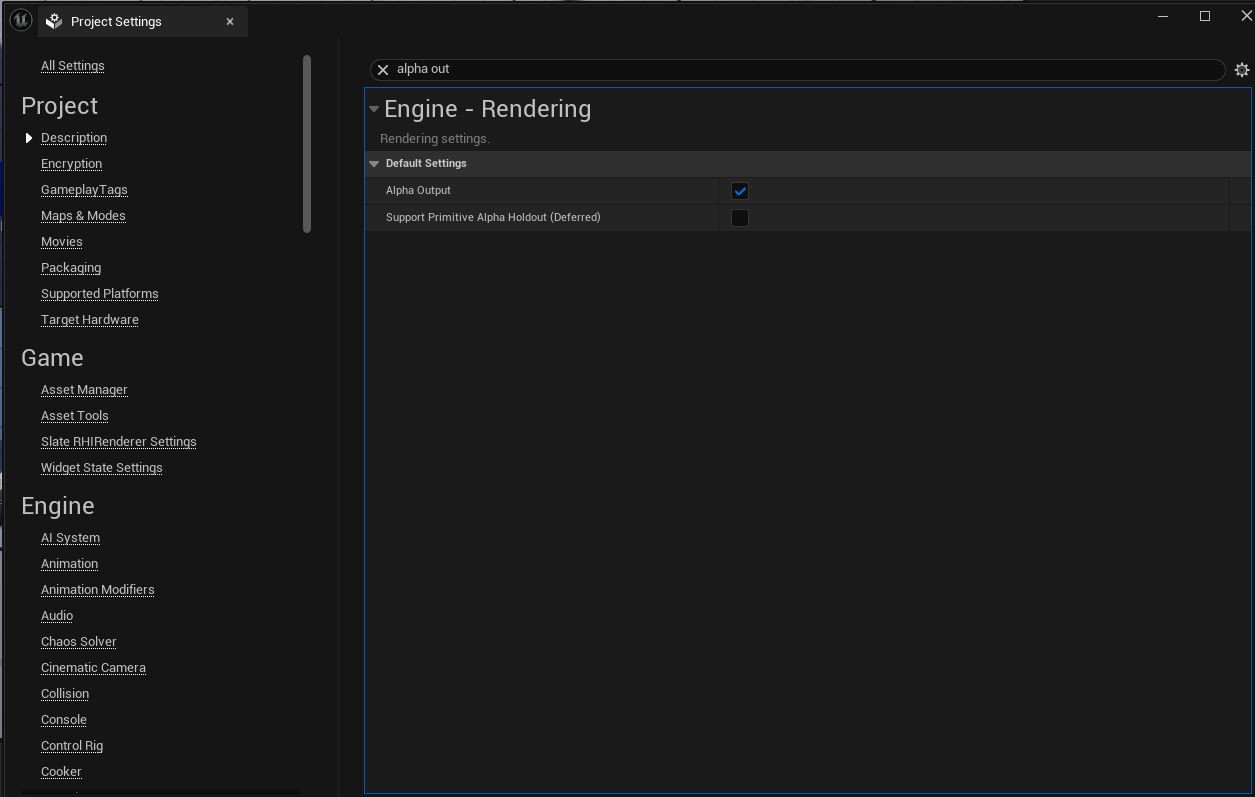
In Project Settings → Rendering, enable Alpha Output. Do not use Alpha Holdout — turn it off if it's enabled.
2. Add a Post Process Volume
Drop a PostProcessVolume actor into your scene.
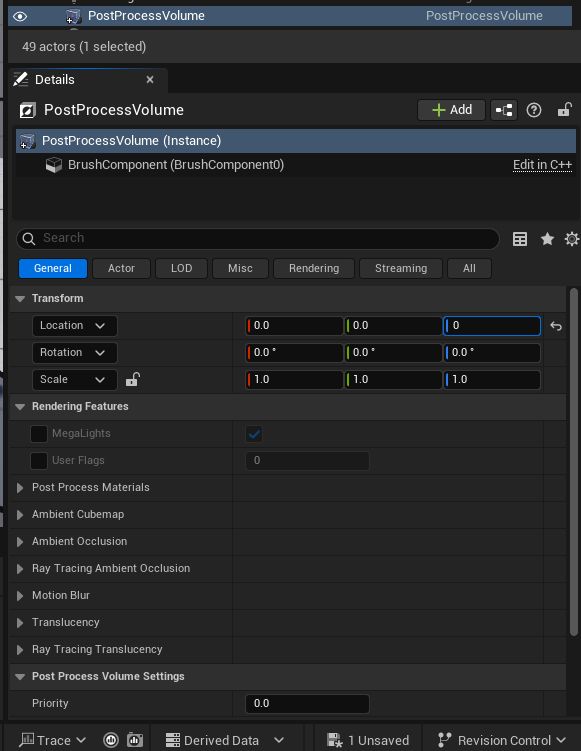
In its settings, enable Infinite Extent (Unbound) so the effect covers the whole scene.
3. Create the alpha-inversion post-process material
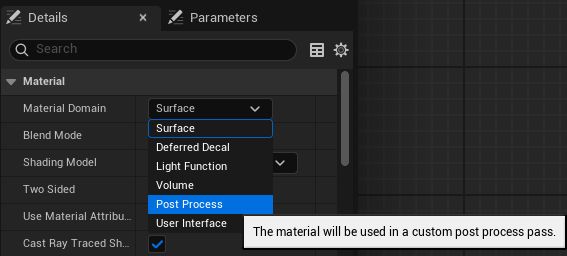
Create a new Material and switch its Material Domain to Post Process Material.
Invert the alpha (Unreal outputs alpha inverted compared to what Vision Pro expects) with this Material Graph:
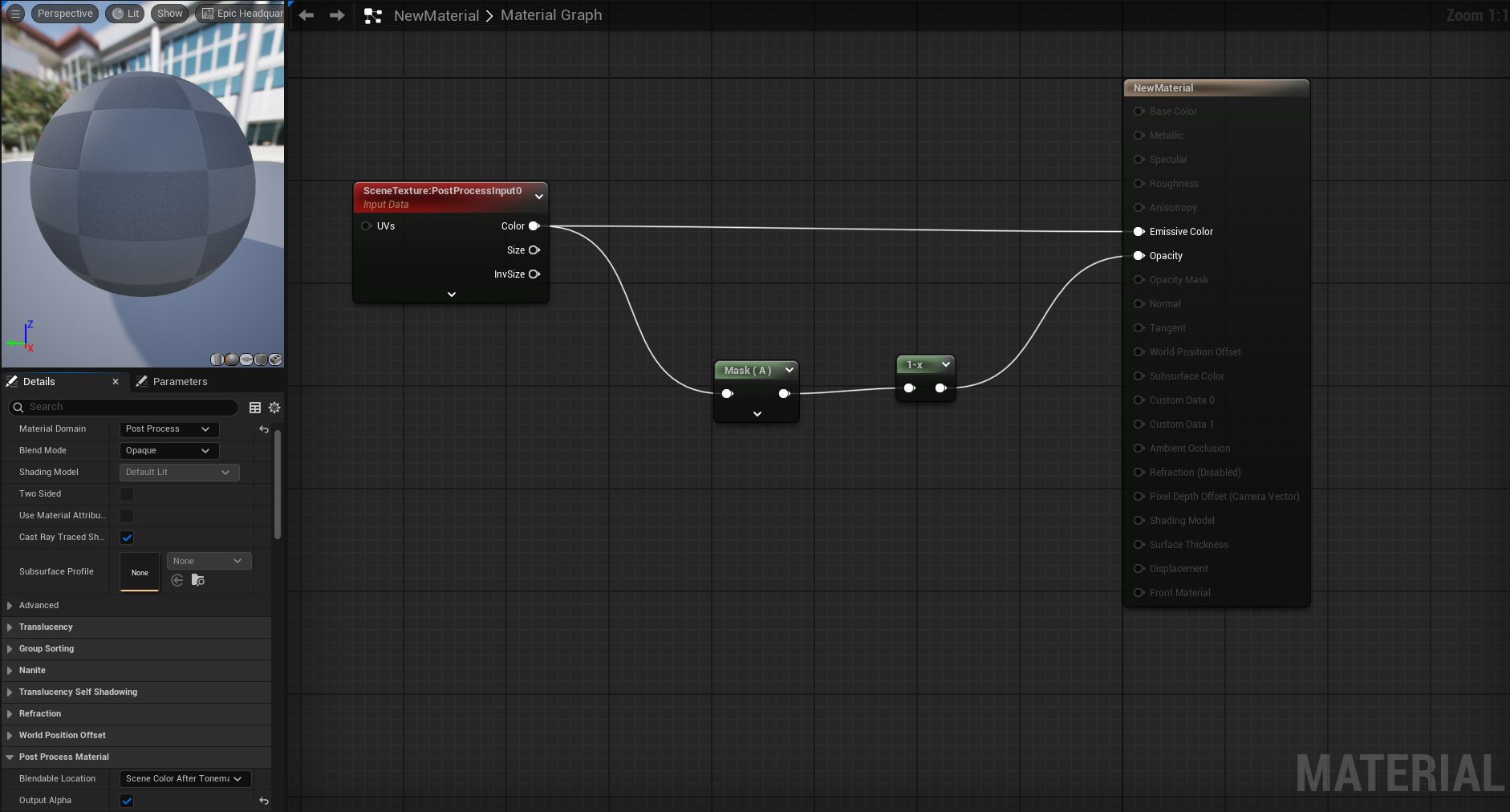
Set the material's Blend Mode to Opaque (not Translucent), and enable Output Alpha in the material settings.
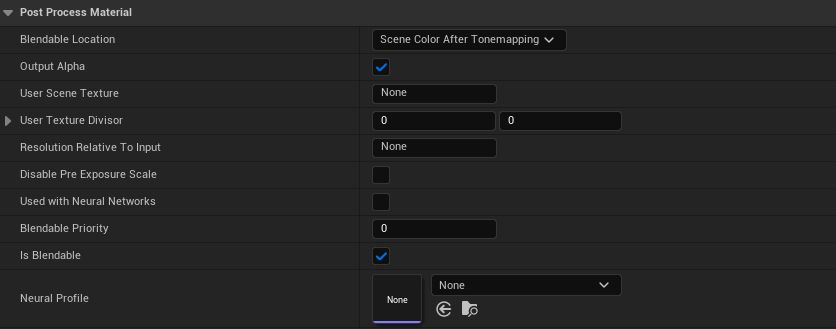
4. Wire the material into the Post Process Volume
Add the new material to the Post Process Volume's Post Process Materials list.

5. Prepare the scene for mixed reality
For mixed-reality mode, remove the skybox and any background geometry so passthrough shows through the inverted alpha. For fully-immersive mode, keep the background and skip this step.
Enable streaming
With the project configured, make sure both the Innoactive Spatial Runtime and the Innoactive Spatial app for Vision Pro are installed.
Close your Unreal project before continuing — the runtime needs exclusive access to register the app.
1. Add Unreal as a manual application in the Spatial Runtime
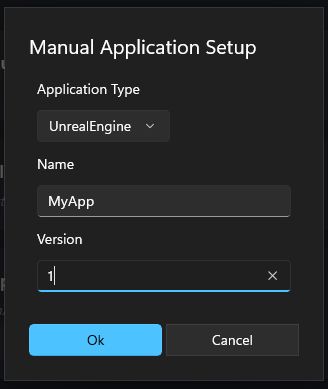
In the Spatial Runtime tray app, open Connected Application → Set Manually. Set Application Type to Unreal Engine (any name / any version is fine).

2. Connect from Apple Vision Pro
On the headset, open Innoactive Spatial. From the left-hand vertical menu, select Workstation.
Select Unreal Engine as the application to stream.
If the workstation isn't discovered, use Manual connect via IP.
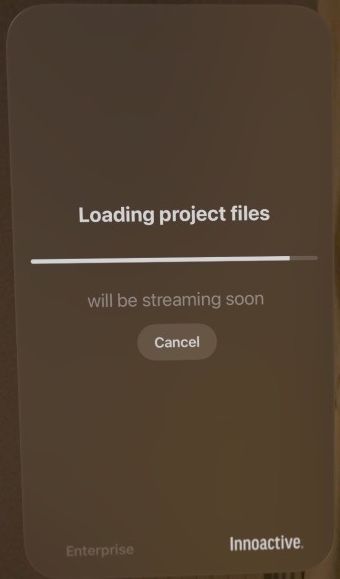
Start the connection and wait for Loading project files — the stream is about to begin.
3. Wait for the three green lights
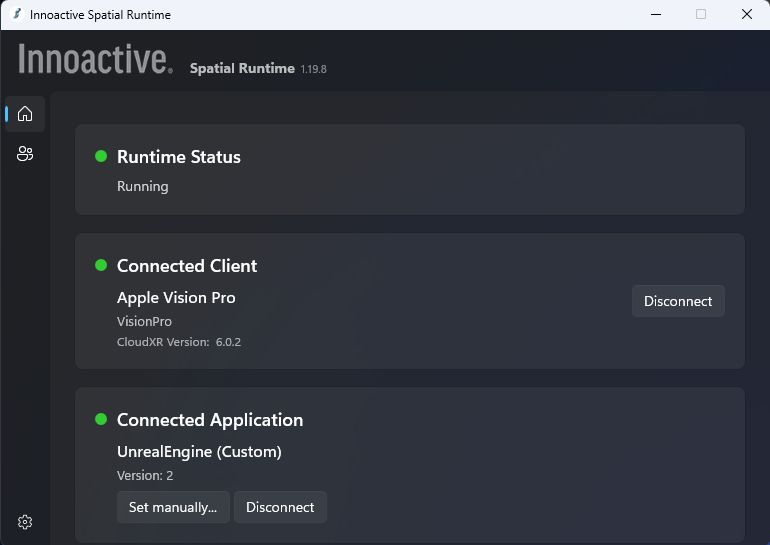
On the workstation, confirm the Spatial Runtime shows three green lights: Runtime status, Connected client, and Connected Application (UnrealEngine).
4. Launch Unreal
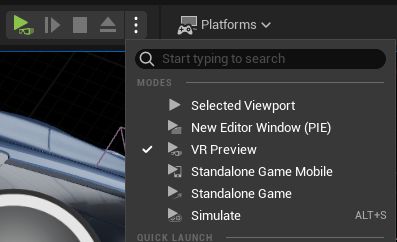
Only at this point start the Unreal packaged build, or open your Unreal Engine project. If Unreal was already running, close it and open it again. Then verify the VR Preview button is green.
What's supported
- Full desktop rendering pipeline — Lumen, Nanite, post-processing, high-poly meshes, virtual shadow maps.
- Hand tracking through the streamed session.
- Multi-user sessions with shared scene state and anchored content.
- Mixed-reality and fully immersive modes (the alpha-inversion material decides which).
Common gotchas
- Forgetting the alpha-inversion material is the single most common setup error — translucent surfaces render correctly but passthrough won't show through.
- Material Blend Mode must be Opaque, not Translucent, or alpha won't reach the output.
- Opening the Unreal project before the runtime confirms the three green lights causes the connection to hang. Wait for green, then launch.
- VR Preview greys out if the XR runtime isn't started — start the Spatial Runtime session first, then launch Unreal. See Lessons learnt.